
Help
Connect HuddleBrains to your tools
Sign in to HuddleBrains first, then follow the section for the tool you use. Each guide was walked through for real with the service shown. Your workspace admin sets up the connection once; see Support if a button is missing.
Claude
Verified in the Claude app. Ask Claude about your meetings, notes and action items. Claude can only read.
In Claude open Customize > Connectors, then Add > Add custom connector. (If it is greyed out, your Claude plan or organisation does not allow custom connectors.)
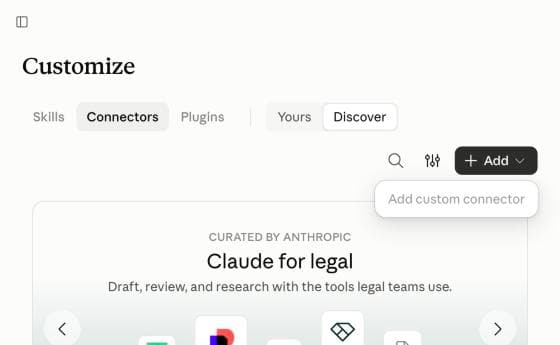
Name it HuddleBrains and paste the connector address your admin gave you (it ends in /api/mcp). Click Continue, leave the detected defaults, then Add.
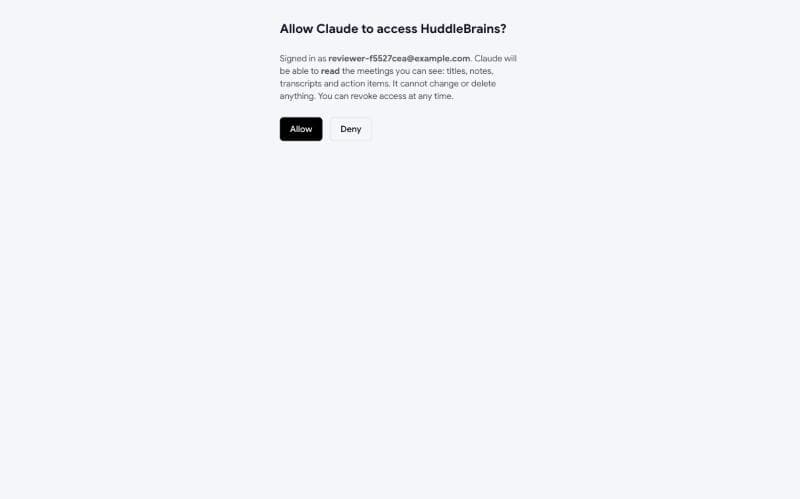
Open the connector and click Connect. On the HuddleBrains screen read what it can do and click Allow.
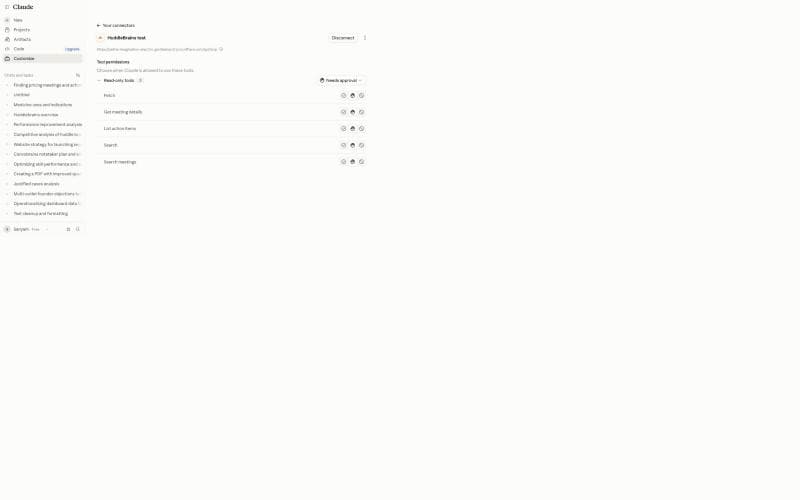
The connector lists five read-only tools.
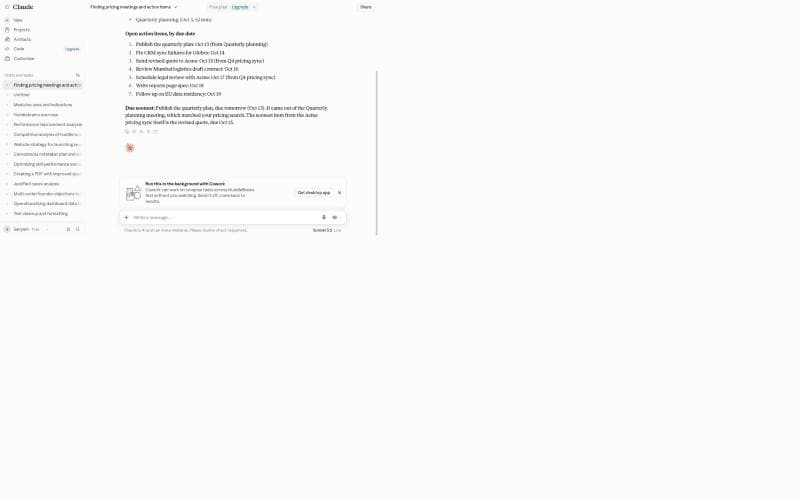
Start a chat, for example: Search my meetings about pricing, then list my open action items and tell me which is due soonest. Choose Allow once when Claude asks permission for a tool.
Disconnect: Customize > Connectors > your HuddleBrains connector > Disconnect.
ChatGPT
Verified in the ChatGPT app. Use HuddleBrains in a ChatGPT chat. ChatGPT searches your meetings and fetches the ones it needs.
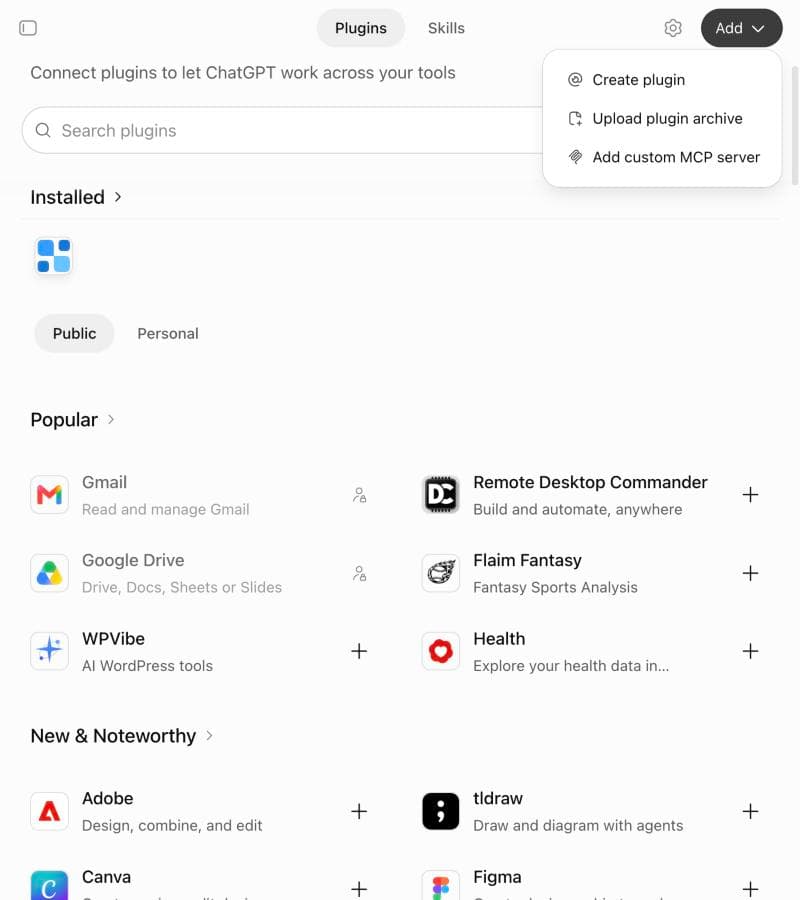
In ChatGPT open Plugins and click Add > Add custom MCP server.
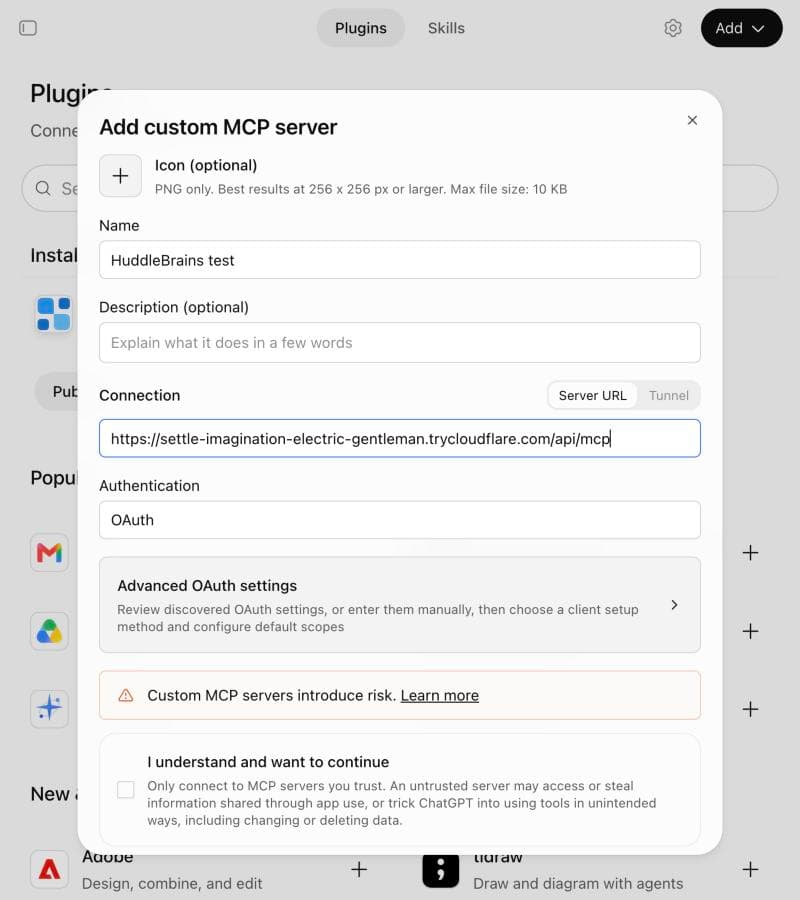
Enter a name, paste the connector address (ending in /api/mcp), keep Authentication on OAuth, tick the acknowledgement that custom servers carry risk, and click Create as a plugin.
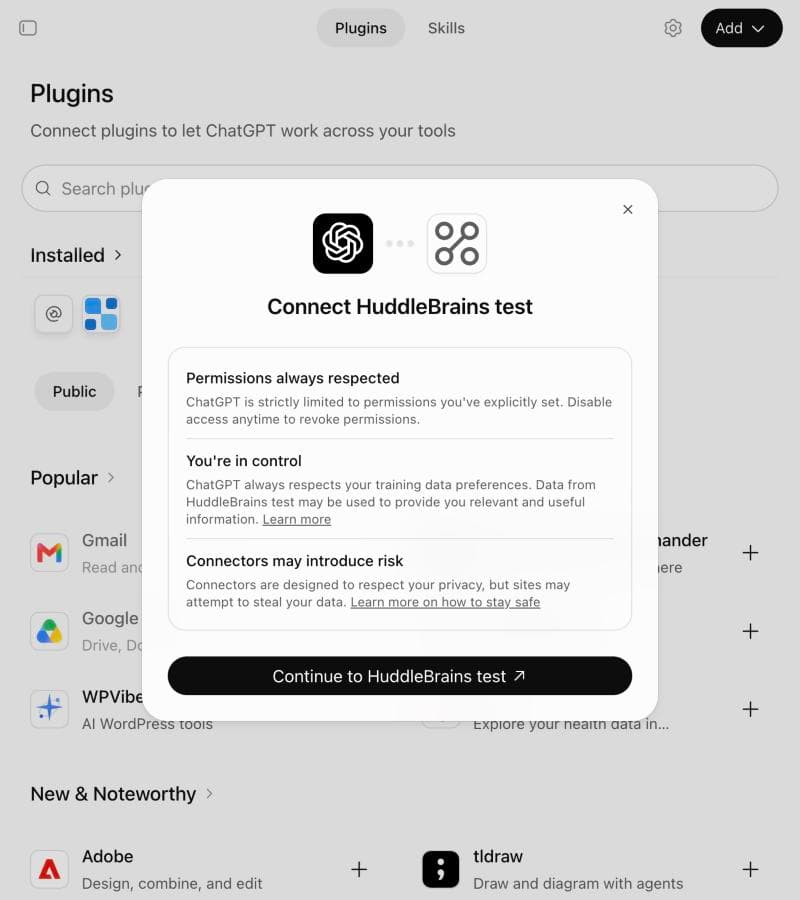
ChatGPT shows Connect HuddleBrains. Click Continue, sign in to HuddleBrains if asked, and click Allow.
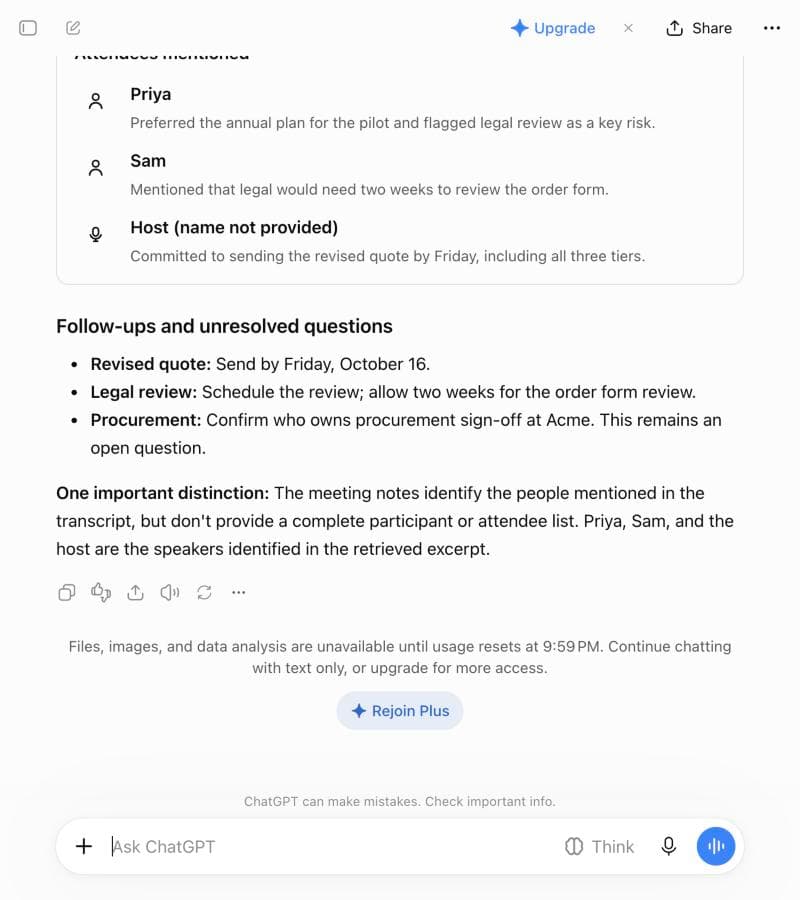
Open the plugin and choose Try in chat, then ask about your meetings.
Disconnect: Plugins > your HuddleBrains plugin > Manage.
Slack
Verified in a real Slack workspace. Connects your Slack workspace with the minimum permissions: message you directly and find you by email. A few minutes before a meeting it sends you a brief, and after it a summary, as direct messages. Channel posts are not available yet.
In HuddleBrains go to Settings > Calendar & bot and click Add to Slack (workspace admins only; it appears once your admin has configured Slack).
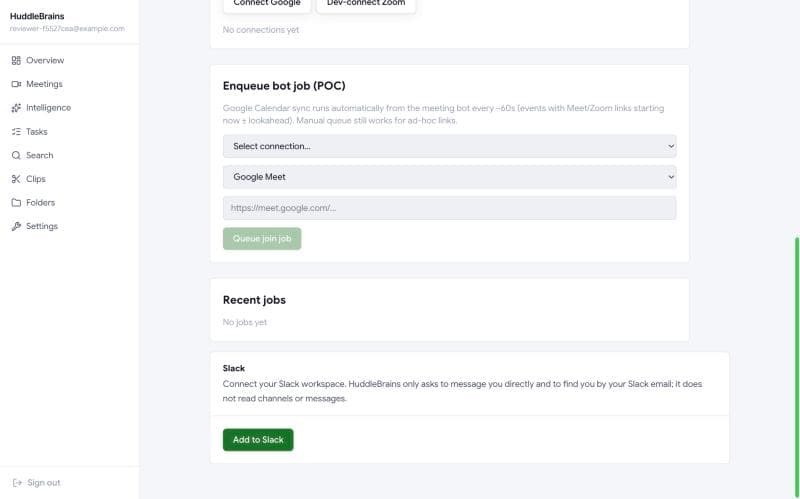
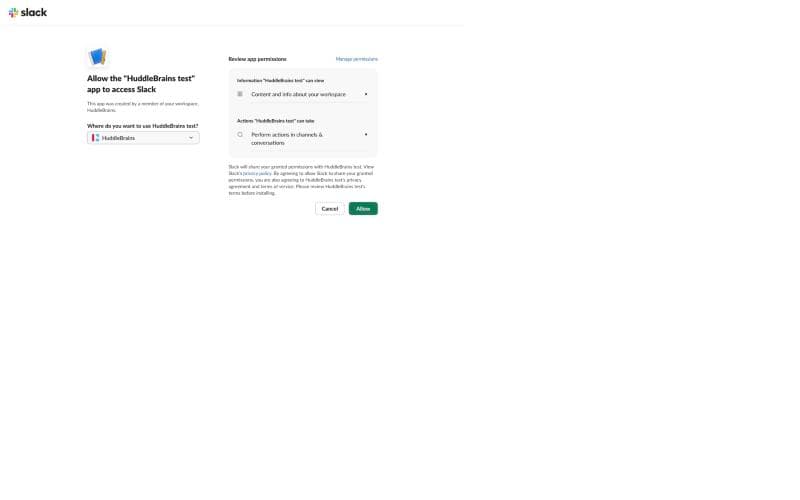
Slack shows what the app can do in your workspace. Click Allow.
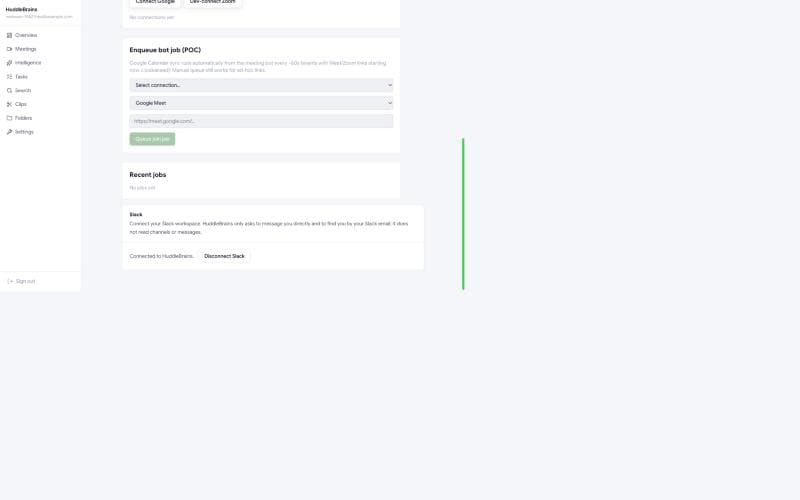
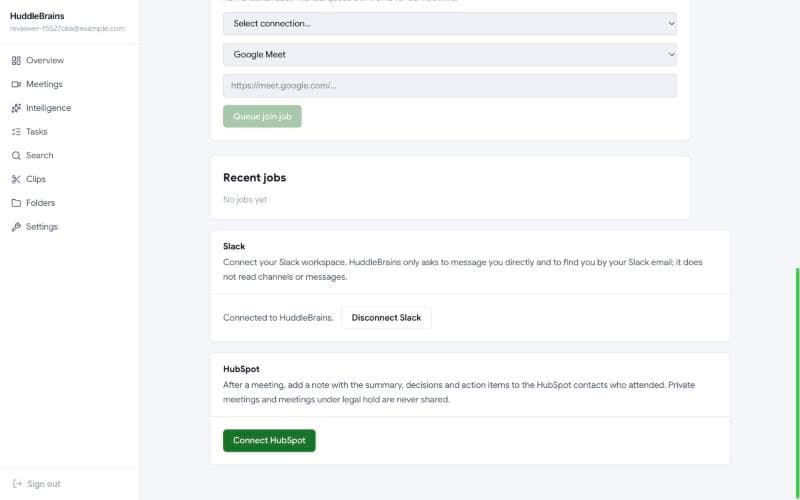
You return to Settings and see Connected.
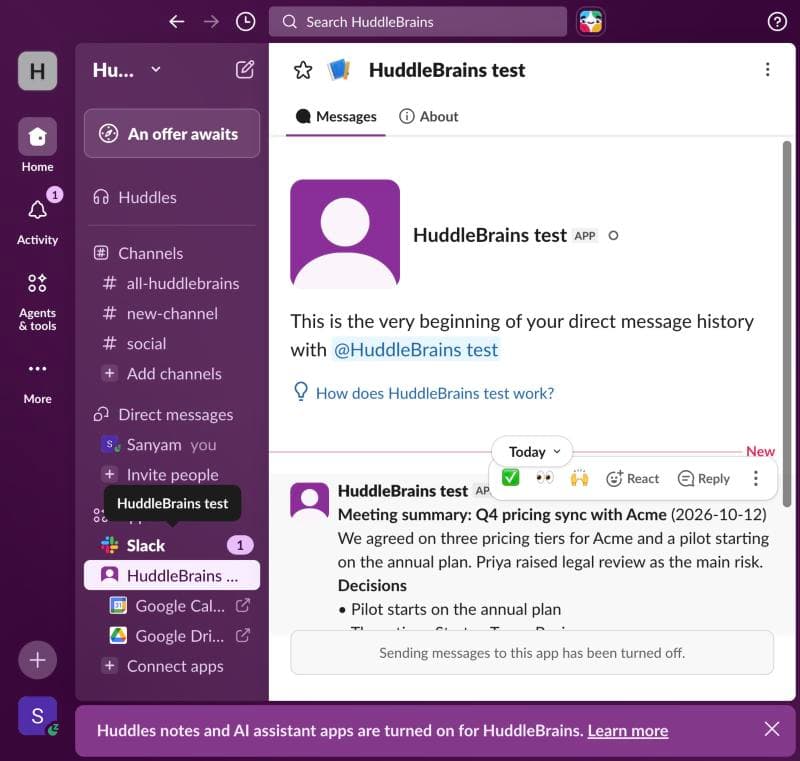
After your next finished meeting, open the HuddleBrains app in Slack: the summary arrives as a direct message, only to you, with a link back to the meeting.
Before a calendar meeting, about 5 to 15 minutes ahead, you get a brief: who is invited, a join link, and what was decided and is still open the last time you met the same people.
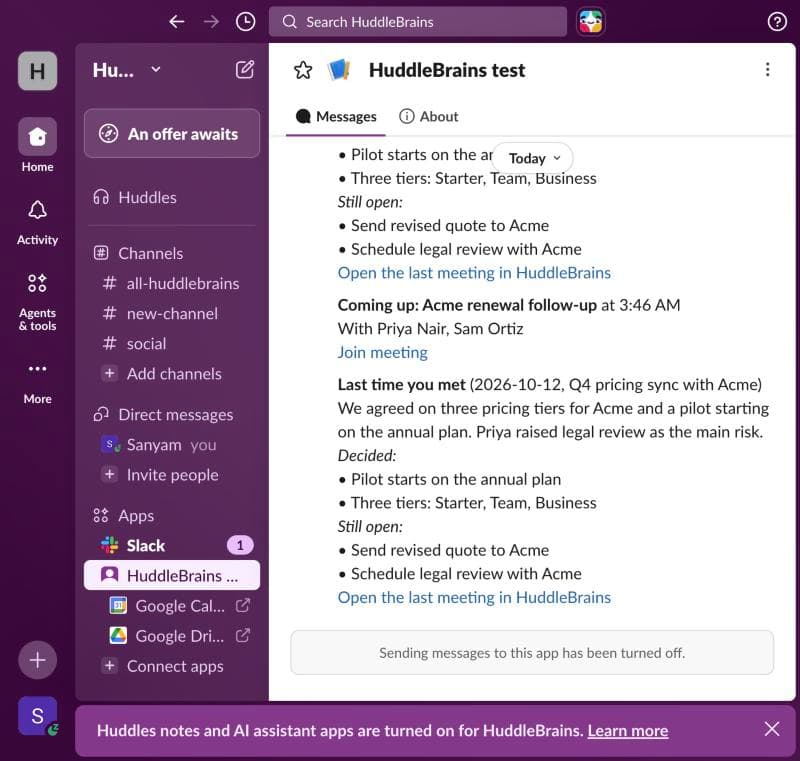
Disconnect: Settings > Calendar & bot > Disconnect Slack. HuddleBrains revokes its token at Slack and deletes its copy. Removing the app from inside Slack also clears it within seconds.
HubSpot
Verified in a real HubSpot account. After a meeting, HuddleBrains adds a note (summary, decisions, next steps, action items) to the existing HubSpot contacts who attended. It never creates contacts, and private meetings are never shared.
In HuddleBrains go to Settings > Calendar & bot and click Connect HubSpot (admins only).
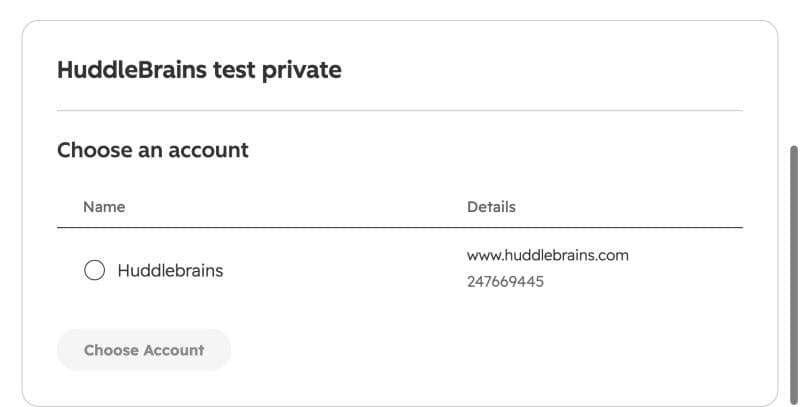
Choose your HubSpot account.
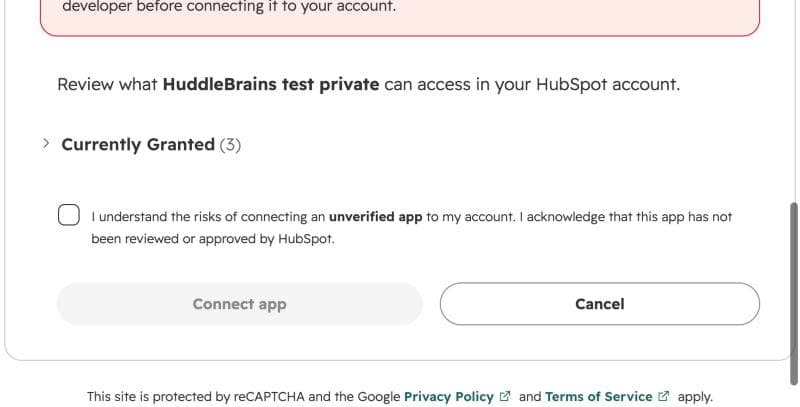
Review what the app can access, tick the acknowledgement if you trust your admin's app, and click Connect app.
After your next meeting with an attendee who is a HubSpot contact, open that contact and its Notes tab.
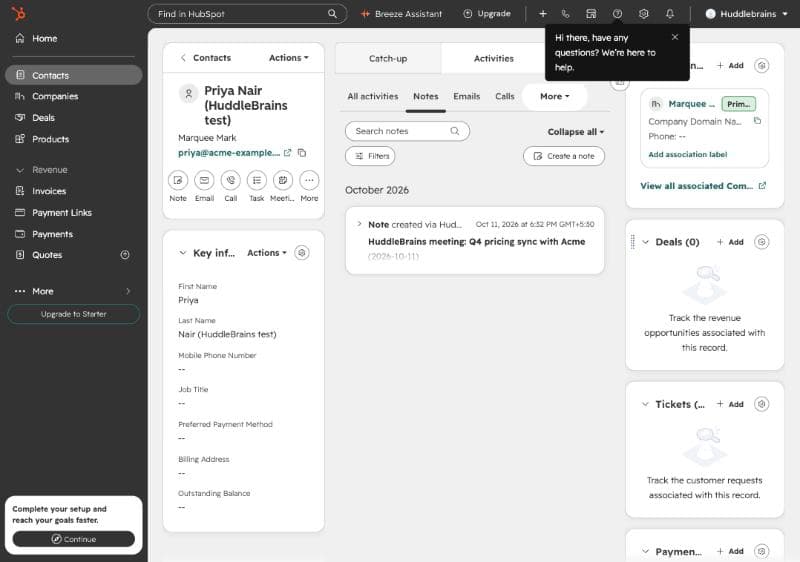
Disconnect: Settings > Calendar & bot > Disconnect HubSpot. HuddleBrains revokes its access at HubSpot and deletes its copy. Notes already added stay in HubSpot.
Pipedrive
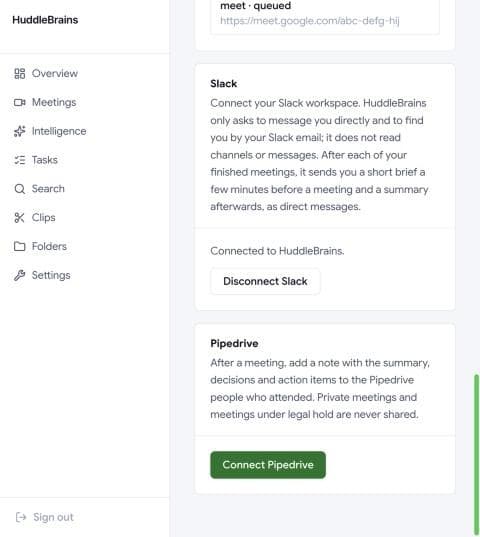
Verified in a real Pipedrive sandbox account. After a meeting, HuddleBrains adds a note (summary, decisions, next steps, action items) to the existing Pipedrive people who attended, matched by email. It never creates people, and private meetings are never shared.
In HuddleBrains go to Settings > Calendar & bot and click Connect Pipedrive (admins only; it appears once your admin has configured Pipedrive).
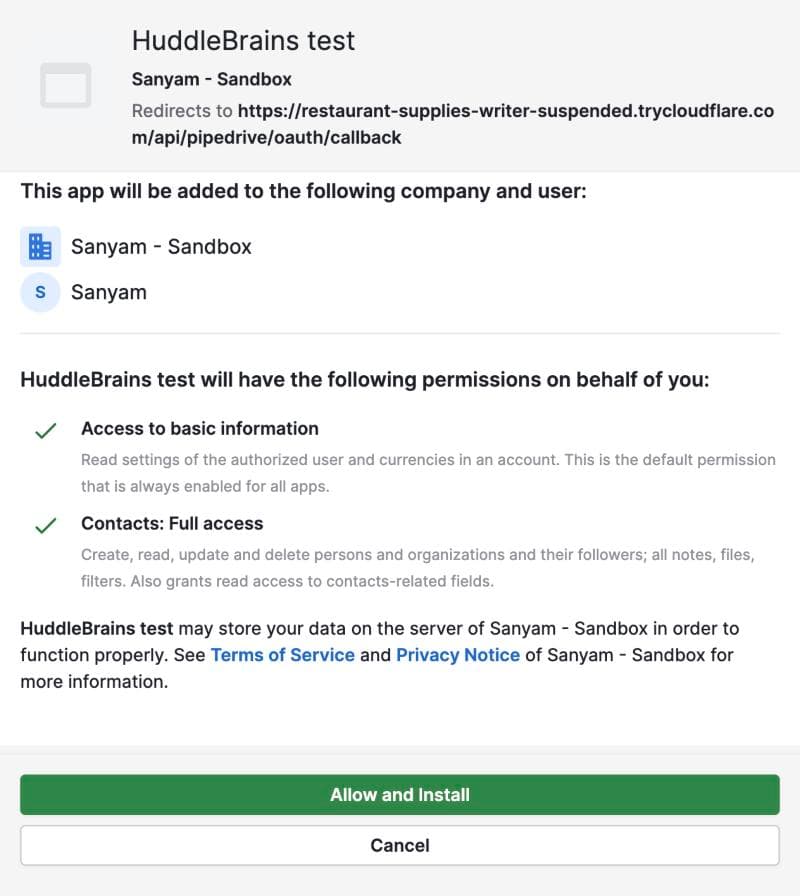
Pipedrive shows the company and user the app will be added to, and what it can do (basic information and contacts). Click Allow and Install.
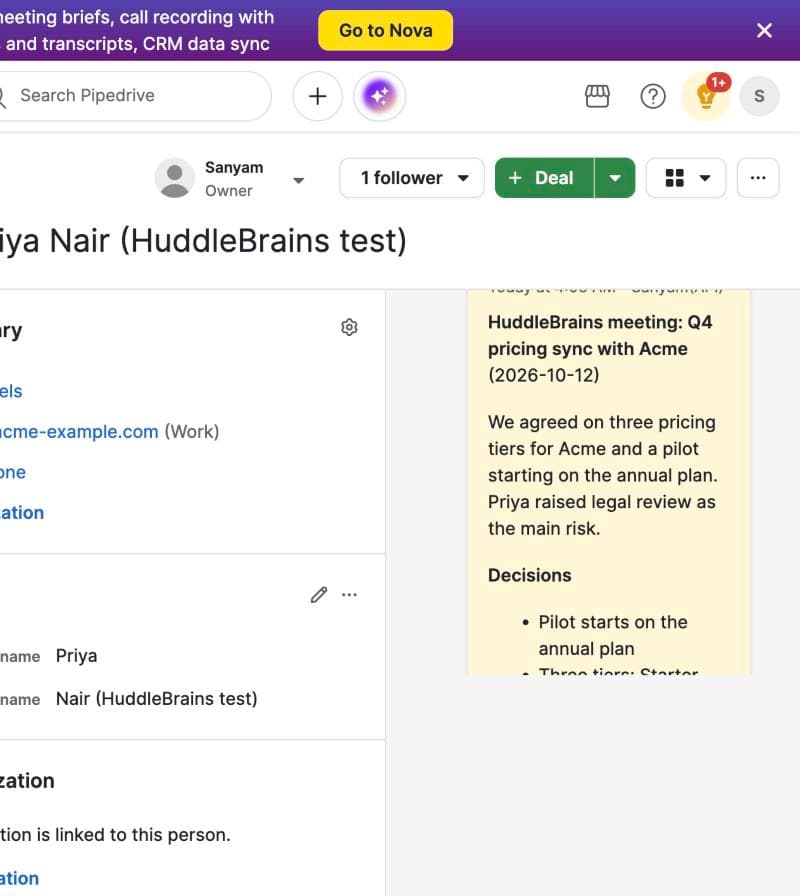
After your next meeting with an attendee who is a person in Pipedrive, open that person and its Notes tab.
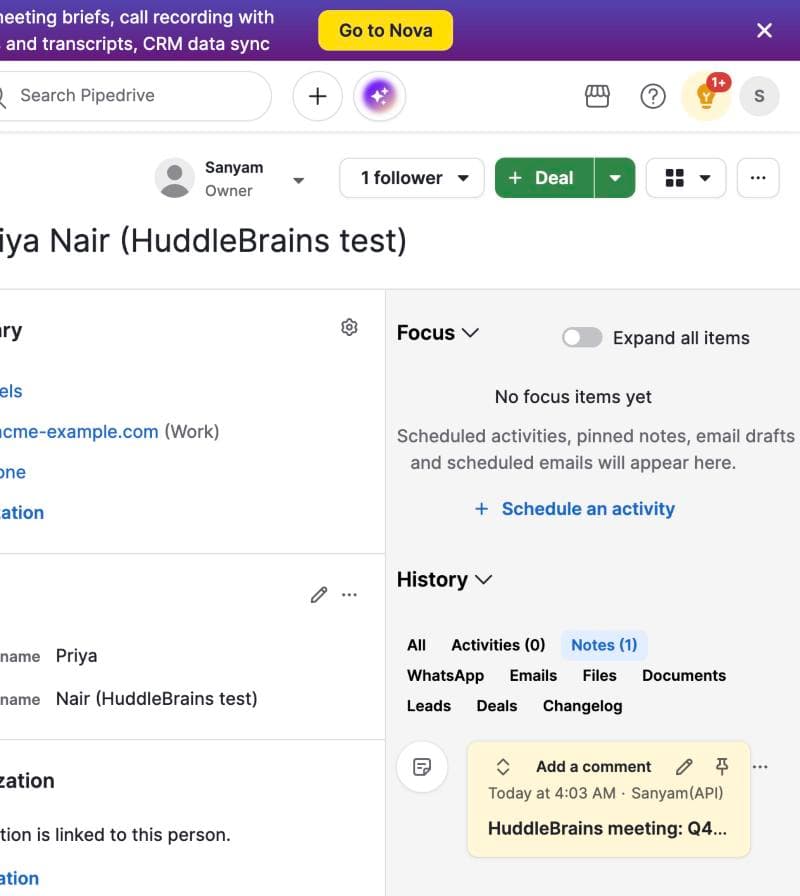
Open the note to see the title, date, overview, decisions, next steps and action items, with a link back to the meeting.
Disconnect: Settings > Calendar & bot > Disconnect Pipedrive. HuddleBrains revokes its access at Pipedrive and deletes its copy. Notes already added stay in Pipedrive.
Good to know
- Claude and ChatGPT can only read the meetings you can see. They cannot change or delete anything.
- Private meetings and meetings under legal hold are never sent to HubSpot.
- You can delete your account and data any time from Settings, and read how we handle data in our privacy policy.